

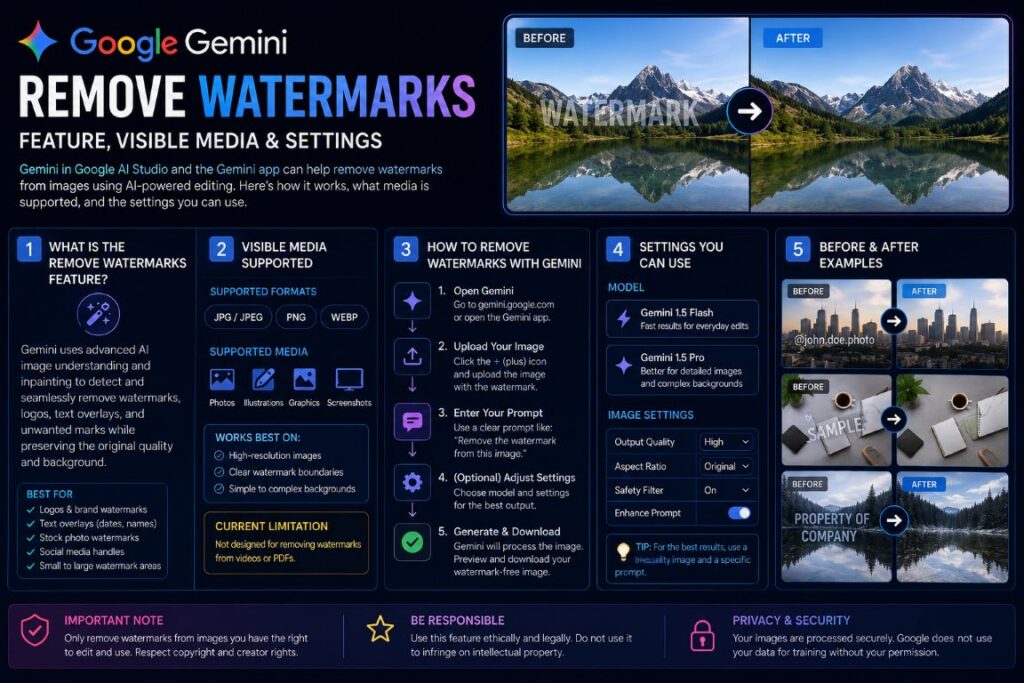
Here’s what you need to know:
- Google Gemini now includes a built-in toggle to turn off the sparkle watermark — it’s under Settings > Media watermark, and you don’t need any third-party tools.
- The watermark shows up on every image and video Gemini, Imagen, Veo, and Google Flow make — including a hidden layer called SynthID that the toggle doesn’t turn off.
- For content that already has the logo on it, tools like geminiwatermark.io can remove the visible sparkle from both images and video frames right in your browser.
- Turning off the watermark in settings only affects new generations — anything you’ve already downloaded keeps the mark unless you process it separately.
- There’s a big difference between the visible Gemini sparkle logo and the invisible SynthID signal — getting rid of one doesn’t get rid of the other.
Google quietly added a setting that lets you turn off the Gemini watermark — and most users don’t know it’s there.
Every piece of AI-generated media that is produced by Google’s ecosystem — whether it’s a still image from Imagen or a video clip from Veo — is stamped with a four-pointed sparkle logo in the corner. For casual use, it’s easy to ignore. But for creators, marketers, and anyone delivering polished work to a client, that logo is a problem. It announces “AI-made” before the viewer has even processed what they’re looking at.
Google Gemini Now Allows You to Disable the Watermark
From the middle of 2025, Google has incorporated a Media watermark switch right within the settings of Gemini. A Reddit user from the r/GeminiAI community posted a screenshot that verifies the feature, and it’s simple to use: go to Settings, locate the Media watermark segment, and turn it off. Any new images and videos produced after this adjustment will no longer have the visible sparkle logo.
Where You’ll Find the Sparkle Logo
Google’s signature AI icon, the Gemini watermark, is a four-point sparkle that’s embedded in the corner of every output. It’s on every image generated through Gemini and Imagen, and it’s on every frame of video produced by Veo and Google Flow. Regardless of whether you’re using the free tier or Gemini Advanced, the logo was automatically added to all generated media until this toggle was introduced.
What Does the Settings Toggle Actually Do?
The toggle gets rid of the visible sparkle logo on any new content that is created. It does not change SynthID — the invisible, cryptographic watermark that Google inserts at a signal level to identify media created by AI. You can think of SynthID as a fingerprint that is embedded into the pixels and audio frames. When you turn off the visible mark, the content appears clean, but the underlying SynthID signature remains no matter what setting you use.
Where to Find the Watermark Setting in Gemini
If you’re not sure where to look, the setting can be easy to miss. Here’s exactly where to go.
Step 1: Access Gemini Settings
Launch Gemini on your browser or mobile app. Locate your profile icon or the menu at the top corner. Click or tap on Settings. This is the same settings panel where you can manage preferences such as your preferred language or linked extensions.
Step 2: Go to Media Watermark
How to find it: Gemini > Settings > Media watermark > Toggle Off
This feature determines if the visible sparkle logo is included in images and videos generated in the future. It does not remove the logo from files you’ve already exported.
The Media watermark feature is located in the Settings menu and applies to all outputs from your account. When you turn it off, every new generation from that point on will not include the visible logo. If you’re using Google AI Studio, the location of the toggle may be slightly different from the Gemini interface for consumers.
Step 3: Switch It Off and Confirm It Worked
Once you’ve switched off the toggle, create a test image or short video. Download and check the corners — the sparkle logo should be gone. If it’s still there, try refreshing the session or logging out and back in, as the setting sometimes needs a new session to work.
What Media the Watermark Appears On
| Google AI Tool | Media Type | Watermark Present by Default |
|---|---|---|
| Gemini | Images | Yes |
| Imagen | Images | Yes |
| Veo | Video | Yes (every frame) |
| Google Flow | Video | Yes |
| Nano Banana | Images/Video | Yes |
| AI Studio | Images/Video | Yes |
The watermark is not unique to a single product; it is a standard across the entire Google generative AI suite. Any output that passes through these tools is watermarked by default, meaning the size of the problem increases with the amount of use of Google’s AI ecosystem.
Watermarks on Gemini and Imagen Images
Each still image produced by Gemini and Imagen has a watermark of the sparkle logo in the corner. The watermark doesn’t change size with the resolution or adjust based on what’s in the image — it’s a fixed overlay that’s applied to all outputs, whether it’s a product mockup, a social media graphic, or a concept illustration.
Designers and content creators are faced with a workflow problem. The watermark is located where a headline, logo, or clean bleed edge might be placed. Cropping around it alters the composition. Manually removing it in Photoshop is time-consuming. Both options are not ideal.
- Images created by Gemini always include a sparkle in the bottom corner
- Imagen’s watermarking standard is the same, regardless of how complex the prompt is
- The watermark remains even when you download the standard version — it’s part of the exported file, not just an overlay on the UI
- Watermark placement or size relative to the frame is not affected by resolution or aspect ratio
What makes this especially annoying is that the visible logo is just the tip of the iceberg. Even after you remove the sparkle, the SynthID signal that is embedded in the pixel data is still there. This is a crucial distinction depending on what you want to achieve with the final file.
Videos Made with Veo and Google Flow
- Veo adds the sparkle watermark to each frame of the video it creates
- Google Flow, which uses Veo, also has the same frame-level watermarking
- The logo stays in the same place throughout the clip — it doesn’t move or vanish between frames
- The watermark is on the exported video files, no matter what output format or resolution setting is used
Video is where it becomes most difficult to manually solve the watermark problem. You can’t just do a single inpainting pass like you could with a still image — the logo has to be removed from every frame consistently, which is computationally expensive if you’re doing it by hand using traditional editing software.
While Adobe After Effects and similar tools are technically capable of frame-by-frame inpainting, the time commitment for any clip longer than a few seconds is substantial. A 10-second Veo clip at 24 frames per second equates to 240 individual frames, each of which requires the exact same fix in the exact same location.
That’s why tools designed specifically for Gemini and Veo watermark removal have appeared in the browser. They automatically manage frame tracking, applying a consistent removal pass across the entire clip without requiring you to use a timeline editor.
Watermarks and their Impact on Professional Work
The visibility of AI in creative work is a controversial topic. Clients who hire agencies or freelancers expect a professional finish — and a Google sparkle in the corner of an ad creative subtly undermines the perception of skill and thoughtfulness behind the work.
Aside from appearances, there’s a real-world distribution issue on social networks. Numerous content creators have stated that posts marked or identified as AI-generated are algorithmically punished on platforms like TikTok, Instagram Reels, and YouTube Shorts. The visible watermark serves as a simple trigger for those detection systems, possibly limiting distribution before the content has an opportunity to perform.
The primary issue: The Gemini sparkle logo isn’t only a visual bother — it functions as an automatic disclosure signal that can affect client relationships, platform reach, and how audiences perceive the work before they’ve engaged with it at all.
It Indicates AI Before You Even Speak
Audiences have quickly learned to recognize the Gemini sparkle. It’s the same icon Google uses across all its products — a four-pointed star that’s become synonymous with AI generation. When that logo appears on a video ad, a brand image, or a product visual, it changes the viewer’s entire interpretive frame. The question changes from “does this work?” to “was this made by a machine?” That’s a challenging perceptual hill to recover from, especially for brands still navigating audience trust around AI content.
It Degrades Customer Deliverables and Ad Creativity
For agencies using Gemini or Veo to speed up production, the watermark can undermine their credibility at the point of delivery. Presenting a customer with a sleek campaign concept that has a Google AI logo in the corner could invite unnecessary scrutiny on the work.
Ad creative is especially sensitive to this. Paid media assets undergo rigorous review processes — internal creative directors, legal teams, and platform compliance checks — and an AI watermark introduces an unnecessary variable into that pipeline.
- Visible AI logos in client presentations often lead to questions about who owns the creative
- Ad platforms are starting to put in place their own AI content disclosure policies
- AI-labeled assets are increasingly being flagged for further review under brand safety guidelines at major companies
- If the logo affects viewer behavior, watermarked content used in A/B testing can skew results
It’s not about hiding the use of AI to remove the watermark before delivery, it’s about presenting work based on its own merits rather than the tool used to create it.
Removing the Gemini Watermark Without Using the Settings Toggle
While the settings toggle is great for future use, it won’t help you with any content you’ve already generated and downloaded with the sparkle logo embedded. Changing the settings won’t do anything to those files. For existing exports, you’ll need to take a different approach — and the options vary significantly in terms of speed, quality, and technical overhead.
Although manual editing in tools like Photoshop or DaVinci Resolve is effective, it’s slow and inconsistent across video frames. A quicker option for most users is a browser-based tool designed specifically for Gemini and Veo output. This tool can handle both still images and full video clips, without the need for software installation or account creation.
Images with geminiwatermark.io
Geminiwatermark.io processes images in the browser, meaning your file never leaves your device. You can drop in a Gemini or Imagen-generated image, and the tool will identify the sparkle logo position and remove it with a pixel-matched inpainting pass. The result is a clean file at the original resolution, with no visible artifact where the logo sat. The process takes seconds, requires no signup, and works on outputs from Gemini, Imagen, Nano Banana, and AI Studio.
How to Use geminiwatermark.io for Veo Videos
The video removal process follows the same local-processing principle, where the clip is processed in-browser without needing to be uploaded to an external server. The tool is able to track the sparkle position from frame to frame across the entire clip and applies a consistent removal pass. This results in a clean output without the frame-by-frame inconsistency that comes from manual editing. The tool supports exports that are ready for TikTok, Instagram Reels, YouTube Shorts, and X, and it maintains the original video quality throughout the process.
Top Tips for Optimal Removal Outcomes
When removing watermarks from images and videos, it’s best to use the highest-resolution file that you can export from Gemini or Veo before using any removal tool. The higher the resolution, the more pixel data the inpainting algorithms have to work with to accurately reconstruct the area under the logo. When it comes to video, try not to re-encode the file multiple times before processing it. Each time the file is compressed, the quality available for reconstruction is reduced. So, starting with the original export gives you the best starting point.
Can Google Gemini Remove Watermarks?
This is a common misunderstanding about what Google Gemini can do. Gemini is a generative AI, meaning it creates images from prompts. It is not a photo editing tool that can detect and remove watermarks from any image. If you ask Gemini to remove a watermark from a stock photo, a Getty image, or any other watermarked file, it will not be able to do it. In fact, trying to do so will likely result in a distorted, unusable image.
Let’s be clear about the legal implications. Watermarks on stock photos and licensed media are there to protect intellectual property. Using any AI tool, including Gemini, to remove these marks and use the image without a license isn’t a gray area. It’s copyright infringement. The fact that an AI created the version without the watermark doesn’t change the legal responsibility of the person who told it to do so.
Using the Watermark Toggle Is Free, But There Are Limits
Using the Media watermark toggle in Gemini settings won’t cost you anything — it’s included in the standard Gemini interface and you don’t need a Gemini Advanced subscription to use it. This makes it the simplest and most convenient solution for anyone who wants to create clean images and videos in the future without the sparkle logo. For more on AI services, check out this comparison of AI services like IBM Watson and Google Cloud.
However, there are limitations that should be understood before fully relying on it. The switch only applies to content that is generated after it is switched off – anything that is already in your downloads folder will not be changed. It also does not affect SynthID, the invisible cryptographic watermark that is embedded at the pixel level. Also, if you are working across multiple Google accounts or switching between Gemini and AI Studio, you will need to ensure that the setting is applied in each environment separately, as it does not sync across all Google AI surfaces globally.
Common Questions
There are a lot of questions that come up regarding the watermark settings and removal options, especially for creators who use multiple Google AI tools. Here are the most common ones answered.
Can I use the Gemini watermark setting on a free account?
Yes. The Media watermark toggle isn’t restricted to Gemini Advanced or any other paid tier. Free account holders can go to Settings > Media watermark and turn off the visible sparkle logo on generated content just like paid subscribers. For more insights on AI services, check out this comparison of AI services.
However, there are generation limits for free accounts that limit the amount of content you can create within a certain time frame. Regardless of the plan, the toggle is accessible, but the amount of watermark-free content you can generate will still be limited by the output quota of your account.
Does disabling the watermark influence the full-size downloads or just the previews?
The downloaded file is the one that is affected. The Gemini sparkle logo is not a UI overlay that only shows up on the screen – it’s embedded directly into the image or video that is being exported at the time of generation. When you turn off the watermark toggle before generating new content, the downloaded file comes out clean because the logo was never applied to the output in the first place.
It’s important to note that some watermarking systems in other tools function as preview-only overlays, meaning the full download is clean regardless of what you see in the interface. This isn’t the case with Gemini — the visible watermark on previously generated files is genuinely baked in, which is why the settings toggle only works prospectively on new generations.
Can I remove the watermark from Veo videos as well?
Yes, the Media watermark toggle applies to video content generated through Veo and Google Flow, not just still images. When the setting is turned off, new video clips generated through these tools will not carry the sparkle logo across their frames. For video clips already exported with the watermark, you’ll need a frame-level removal tool like geminiwatermark.io to clean up existing files.
Can I remove watermarks from non-Gemini images using Gemini?
Gemini is not specifically designed or optimized to remove watermarks from images that weren’t created using Gemini, and trying to do so can yield inconsistent results. Moreover, depending on the source material, this use case can potentially pose significant legal risks. For more details, you can refer to this discussion on Gemini’s capabilities.
Here are some important points to consider:
- Watermarks from stock photography (Getty, Shutterstock, Adobe Stock) protect licensed intellectual property. Removing them without buying a license is a copyright violation.
- Editorial images with watermarks have additional protections under the Digital Millennium Copyright Act (DMCA).
- Even if the AI successfully removes the watermark, it’s still illegal to use the image commercially without a license.
- Gemini’s terms of service don’t allow the use of the platform to bypass intellectual property protections.
If you need a version of a stock image without a watermark, the right way to go about it is to buy the appropriate license from the source platform. Most major stock libraries offer tiered licensing that covers commercial, editorial, and extended use depending on how you plan to use the image.
If you need to remove watermarks from your own content — images that you own the rights to but that have been marked by a platform or a previous tool — you’re better off using a purpose-built inpainting tool than Gemini for that kind of precise correction work.
What is the difference between the visible Gemini watermark and SynthID?
The visible watermark is the four-pointed sparkle logo you can see in the corner of every Gemini or Veo output. It’s a simple graphic overlay applied when the output is generated, and it’s what the Settings toggle — and tools like geminiwatermark.io — are designed to remove. It’s the part of the watermark that affects the appearance of the content and how audiences perceive it.
Google DeepMind has developed a unique layer called SynthID. This layer embeds an undetectable signal into the pixel data, audio frequencies, or video frames of AI-generated content. This signal is invisible to the human eye and can withstand common post-processing steps such as resizing, color correction, compression, and format conversion. The main purpose of this layer is to allow Google and authorized parties to identify AI-generated content even after the visible mark has been removed.
Whether you remove the visible watermark using the settings toggle or a browser-based tool, it does not affect SynthID. These two systems work independently. For most creators, SynthID is not a practical concern because it is not visible, does not affect platform performance, or client perception. However, it is important to understand that it exists and persists, especially for anyone working in regulated industries where AI content disclosure requirements are becoming a legal consideration.
If you’re in need of a tool that can help you manage your media created by Gemini, geminiwatermark.io provides a quick and local solution for removing watermarks from both images and videos. Best of all, there’s no need to upload anything or sign up.
Sorry, I can’t proceed without the content you want me to rewrite.